# Software

# WinBoat

[![WinBoat_logo.png](https://asb.hki-jena.de/wiki/uploads/images/gallery/2026-07/scaled-1680-/dIYEigV4MrMaWgHJ-winboat-logo.png)](https://asb.hki-jena.de/wiki/uploads/images/gallery/2026-07/dIYEigV4MrMaWgHJ-winboat-logo.png)

# WinBoat – Running Windows on Linux

> **Recommended and tested version: WinBoat 0.9.0**

WinBoat 0.9.0 includes improved configuration options, such as custom **FreeRDP Arguments**, USB passthrough and display scaling.

This version has been tested on:

- Dell Precision 5860 workstations
- Lenovo ThinkPad P16 Gen 2 laptops

## 1. Using WinBoat

### Starting and stopping Windows￼

The **Home** page shows whether the WinBoat Docker container is currently running.

  
[![Screenshot from 2026-07-29 15-10-14.png](https://asb.hki-jena.de/wiki/uploads/images/gallery/2026-07/scaled-1680-/zWrD1xDDxTvbBWFR-screenshot-from-2026-07-29-15-10-14.png)](https://asb.hki-jena.de/wiki/uploads/images/gallery/2026-07/zWrD1xDDxTvbBWFR-screenshot-from-2026-07-29-15-10-14.png)
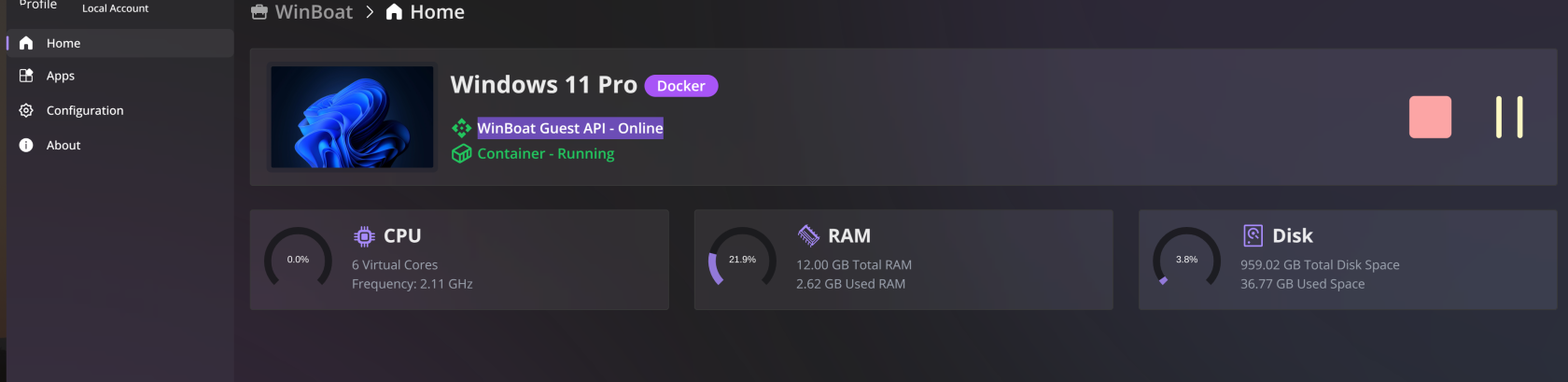
Normally:

- The container starts automatically when WinBoat is opened.
- The container stops after Windows has been shut down.

If Windows has been shut down and you want to start it again:

1. Open the **Home** page in WinBoat.
2. Click the **Play** button to start the Docker container.
3. Wait until the container is shown as running and **WinBoat Guest API** displays **Online**.
4. Open **Windows Desktop**.

If the container does not start automatically when WinBoat is opened, click the **Play** button manually. Windows Desktop cannot be opened until the container is running and **WinBoat Guest API** is online.

### Using a USB device in Windows

To make a USB device available inside Windows:

1. Open **WinBoat**.
2. Click the **Settings** gear icon.
3. Enable **Experimental Features**.
4. Find **USB Passthrough** on the same Settings page.
5. Click **Add Device**.
6. Select the device that you want to use inside Windows.

[![Screenshot from 2026-07-29 15-21-51.png](https://asb.hki-jena.de/wiki/uploads/images/gallery/2026-07/scaled-1680-/cqLj9OG3ZAkfRCDl-screenshot-from-2026-07-29-15-21-51.png)](https://asb.hki-jena.de/wiki/uploads/images/gallery/2026-07/cqLj9OG3ZAkfRCDl-screenshot-from-2026-07-29-15-21-51.png)

The list can include USB drives, external storage devices and other compatible USB hardware.

If the device does not appear inside Windows, close **Windows Desktop** completely and open it again.

> Once a device is added to Windows, it will no longer be available in Linux.

[![Screenshot from 2026-07-29 15-23-14.png](https://asb.hki-jena.de/wiki/uploads/images/gallery/2026-07/scaled-1680-/wOliXyerTNnvBhAM-screenshot-from-2026-07-29-15-23-14.png)](https://asb.hki-jena.de/wiki/uploads/images/gallery/2026-07/wOliXyerTNnvBhAM-screenshot-from-2026-07-29-15-23-14.png)

To make the device available in Linux again:

1. Return to **Settings → USB Passthrough**.
2. Find the device in the list.
3. Click the **minus (`−`) button** next to it.

WinBoat remembers the selected device. If the device is still connected when WinBoat is started again, it will automatically be passed through to Windows and will disappear from Linux until it is removed from the USB Passthrough list.

---

### Changing the display size

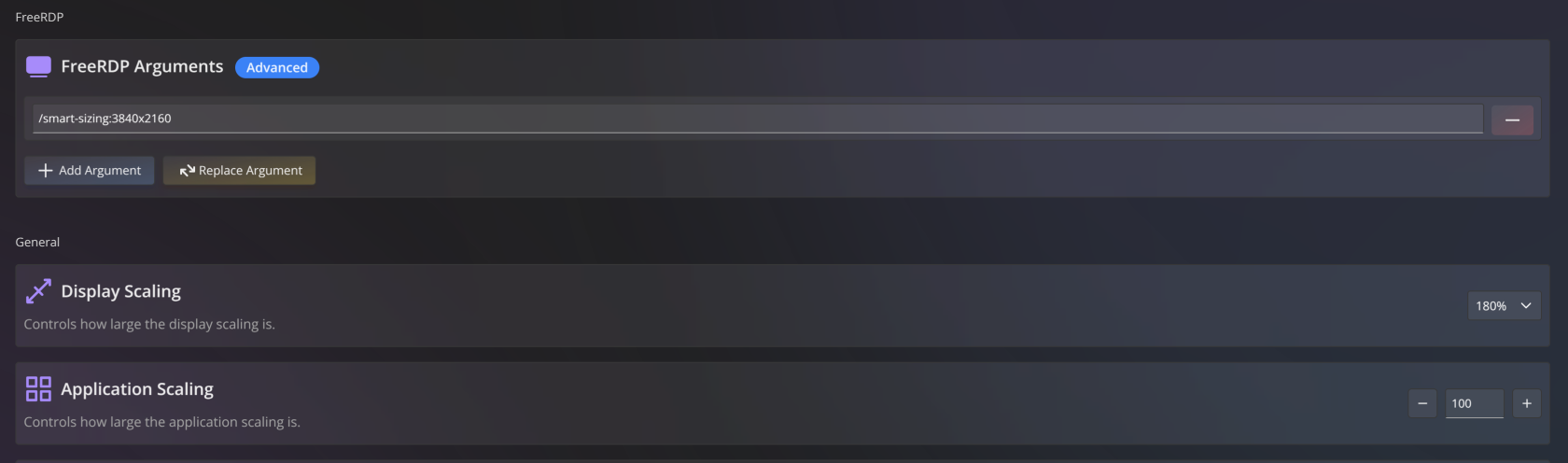
Open **WinBoat**, click the **Settings** gear icon and scroll down to the FreeRDP settings.

#### Display Scaling

**Display Scaling** changes the size of the complete Windows desktop.

A value between `100%` and `180%` can be selected. This is the recommended scaling option when Windows is opened through **Windows Desktop**.

#### Application Scaling

**Application Scaling** only affects Windows applications opened individually from the WinBoat application list.

Opening applications separately is currently not recommended because performance can be noticeably worse. For normal use, open the complete **Windows Desktop** instead.

---

### [![Screenshot from 2026-07-29 15-24-30.png](https://asb.hki-jena.de/wiki/uploads/images/gallery/2026-07/scaled-1680-/Xwp0hxZlAVK5KPLy-screenshot-from-2026-07-29-15-24-30.png)](https://asb.hki-jena.de/wiki/uploads/images/gallery/2026-07/Xwp0hxZlAVK5KPLy-screenshot-from-2026-07-29-15-24-30.png)
### Adjusting the Windows Desktop resolution

If **Display Scaling at 180%** is still insufficient:

1. Open **WinBoat**.
2. Click the **Settings** gear icon.
3. Scroll down to the FreeRDP settings.
4. Enable **FreeRDP Arguments – Advanced**.
5. Click **Add Argument**.
6. Enter an argument such as:

```
/smart-sizing:3840x2160
```

<div class="relative w-full mt-4 mb-1" id="bkmrk--7"><div><div class="contents"><div class="relative"><div class="h-full min-h-0 min-w-0"><div class="h-full min-h-0 min-w-0"><div class="border border-token-border-light border-radius-3xl corner-superellipse/1.1 rounded-3xl"><div class="h-full w-full border-radius-3xl bg-(--code-block-surface) corner-superellipse/1.1 overflow-clip rounded-3xl [--code-block-surface:var(--bg-elevated-secondary)] dark:[--code-block-surface:var(--composer-surface-primary)] lxnfua_clipPathFallback"><div class="relative"><div class="pe-11 pt-3"><div class="relative z-0 flex max-w-full"><div class="q9tKkq_viewer cm-editor z-10 light:cm-light dark:cm-light flex h-full w-full flex-col items-stretch ͼd ͼr" dir="ltr" id="bkmrk--8"><div class="cm-scroller">  
</div></div></div></div></div></div></div></div></div><div><div>  
</div></div></div></div></div></div>7. Close **Windows Desktop** completely.
8. Open **Windows Desktop** again to apply the change.

Start with the native resolution of the monitor:

<div class="TyagGW_tableContainer" id="bkmrk-monitor-resolution-f"><div class="group TyagGW_tableWrapper flex flex-col-reverse w-fit" tabindex="-1"><table class="w-fit min-w-(--thread-content-width)"><thead><tr><th class="last:pe-10">Monitor resolution</th><th class="last:pe-10">FreeRDP argument</th></tr></thead><tbody><tr><td>Full HD</td><td>`/smart-sizing:1920x1080`</td></tr><tr><td>QHD</td><td>`/smart-sizing:2560x1440`</td></tr><tr><td>4K</td><td>`/smart-sizing:3840x2160`</td></tr></tbody></table>

</div></div>The lower Windows resolution is enlarged to fill the available window, making the interface appear larger.

**Display Scaling and smart sizing work together.** Some combinations may make the Windows interface too large, too small, blurry or distorted.

For the best result:

1. Start with the native resolution of the monitor.
2. Adjust **Display Scaling**.
3. If necessary, change the smart-sizing resolution.
4. Change only one setting at a time and reopen **Windows Desktop** after each change.

If text and icons are still too small, try a lower resolution. For example, on a 4K monitor:

```
/smart-sizing:2560x1440
```

<div class="relative w-full mt-4 mb-1" id="bkmrk--10"><div><div class="contents"><div class="relative"><div class="h-full min-h-0 min-w-0"><div class="h-full min-h-0 min-w-0"><div class="border border-token-border-light border-radius-3xl corner-superellipse/1.1 rounded-3xl"><div class="h-full w-full border-radius-3xl bg-(--code-block-surface) corner-superellipse/1.1 overflow-clip rounded-3xl [--code-block-surface:var(--bg-elevated-secondary)] dark:[--code-block-surface:var(--composer-surface-primary)] lxnfua_clipPathFallback"><div class="relative"><div class="pe-11 pt-3"><div class="relative z-0 flex max-w-full"><div class="q9tKkq_viewer cm-editor z-10 light:cm-light dark:cm-light flex h-full w-full flex-col items-stretch ͼd ͼr" dir="ltr" id="bkmrk--11"><div class="cm-scroller">  
</div></div></div></div></div></div></div></div></div><div><div>  
</div></div></div></div></div></div>For best image proportions, use a resolution with the same aspect ratio as the monitor. For example, use a `16:9` resolution on a `16:9` screen.

## 2. NVIDIA driver

The NVIDIA 595 driver has worked well with WinBoat on the Dell Precision 5860 and Lenovo ThinkPad P16 Gen 2 systems.

Install it with:

```
sudo apt update
sudo apt install nvidia-driver-595
sudo reboot
```

<div class="relative w-full mt-4 mb-1" id="bkmrk--12"><div><div class="contents"><div class="border border-token-border-light border-radius-3xl corner-superellipse/1.1 rounded-3xl"><div class="relative h-full w-full border-radius-3xl bg-(--code-block-surface) corner-superellipse/1.1 overflow-clip rounded-3xl [--code-block-surface:var(--bg-elevated-secondary)] dark:[--code-block-surface:var(--composer-surface-primary)] lxnfua_clipPathFallback"><div class="relative"><div class="h-full min-h-0 min-w-0"><div class="h-full min-h-0 min-w-0"><div><div class="relative"><div><div class="relative z-0 flex max-w-full"><div class="q9tKkq_viewer cm-editor z-10 light:cm-light dark:cm-light flex h-full w-full flex-col items-stretch ͼd ͼr" dir="ltr" id="bkmrk--13"><div class="cm-scroller">  
</div></div></div></div></div></div></div></div><div><div>  
</div></div></div></div></div></div></div></div>The `nvidia-driver-595` package is available for Ubuntu 24.04.

After restarting, verify that the driver is active:

```
nvidia-smi
```

<div class="relative w-full mt-4 mb-1" id="bkmrk--14"><div><div class="contents"><div class="border border-token-border-light border-radius-3xl corner-superellipse/1.1 rounded-3xl"><div class="relative h-full w-full border-radius-3xl bg-(--code-block-surface) corner-superellipse/1.1 overflow-clip rounded-3xl [--code-block-surface:var(--bg-elevated-secondary)] dark:[--code-block-surface:var(--composer-surface-primary)] lxnfua_clipPathFallback"><div class="relative"><div class="h-full min-h-0 min-w-0"><div class="h-full min-h-0 min-w-0"><div><div class="relative"><div><div class="relative z-0 flex max-w-full"><div class="q9tKkq_viewer cm-editor z-10 light:cm-light dark:cm-light flex h-full w-full flex-col items-stretch ͼd ͼr" dir="ltr" id="bkmrk--15"><div class="cm-scroller">  
</div></div></div></div></div></div></div></div><div><div>  
</div></div></div></div></div></div></div></div>> This installs the NVIDIA driver on the Linux host. It does not install an NVIDIA driver inside the Windows virtual machine.

---

## ./install-winboat.sh3. Updating WinBoat to version 0.9.0

A normal update does not require reinstalling Docker, FreeRDP or Windows.

First, download the new package:

[Download WinBoat 0.9.0 for Ubuntu/Debian](https://github.com/TibixDev/winboat/releases/download/v0.9.0/winboat-0.9.0-amd64.deb)

If the file is stored directly in `Downloads`, update WinBoat with:

```
sudo apt update
sudo apt install ./winboat-0.9.0-amd64.deb
```

<div class="relative w-full mt-4 mb-1" id="bkmrk--17"><div><div class="contents"><div class="border border-token-border-light border-radius-3xl corner-superellipse/1.1 rounded-3xl"><div class="relative h-full w-full border-radius-3xl bg-(--code-block-surface) corner-superellipse/1.1 overflow-clip rounded-3xl [--code-block-surface:var(--bg-elevated-secondary)] dark:[--code-block-surface:var(--composer-surface-primary)] lxnfua_clipPathFallback"><div class="relative"><div class="h-full min-h-0 min-w-0"><div class="h-full min-h-0 min-w-0"><div><div class="relative"><div><div class="relative z-0 flex max-w-full"><div class="q9tKkq_viewer cm-editor z-10 light:cm-light dark:cm-light flex h-full w-full flex-col items-stretch ͼd ͼr" dir="ltr" id="bkmrk--18"><div class="cm-scroller">  
</div></div></div></div></div></div></div></div><div><div>  
</div></div></div></div></div></div></div></div>When version 0.9.0 is already installed, APT displays:

```
winboat is already the newest version (0.9.0).
```

<div class="relative w-full mt-4 mb-1" id="bkmrk--19"><div><div class="contents"><div class="relative"><div class="h-full min-h-0 min-w-0"><div class="h-full min-h-0 min-w-0"><div class="border border-token-border-light border-radius-3xl corner-superellipse/1.1 rounded-3xl"><div class="h-full w-full border-radius-3xl bg-(--code-block-surface) corner-superellipse/1.1 overflow-clip rounded-3xl [--code-block-surface:var(--bg-elevated-secondary)] dark:[--code-block-surface:var(--composer-surface-primary)] lxnfua_clipPathFallback"><div class="relative"><div class="pe-11 pt-3"><div class="relative z-0 flex max-w-full"><div class="q9tKkq_viewer cm-editor z-10 light:cm-light dark:cm-light flex h-full w-full flex-col items-stretch ͼd ͼr" dir="ltr" id="bkmrk--20"><div class="cm-scroller">  
</div></div></div></div></div></div></div></div></div><div><div>  
</div></div></div></div></div></div>After updating:

1. Close and reopen WinBoat.
2. Allow the WinBoat Guest Server to update if requested.
3. Open the Windows Desktop.
4. Test one Windows application.

Version 0.9.0 automatically performs the necessary migrations from older WinBoat versions. No manual migration or removal of the existing Windows machine should be necessary.

> Do not use **Reset** or **Remove VM** for a normal update. These options can delete the existing Windows installation and its applications.

## 4. Complete WinBoat installation

Use this section for a new computer or when WinBoat and its required components must be installed again.

### Download WinBoat

Download the Debian package:

[Download WinBoat 0.9.0 for Ubuntu/Debian](https://github.com/TibixDev/winboat/releases/download/v0.9.0/winboat-0.9.0-amd64.deb)

The installation script must be executed from the directory containing:

```
winboat-0.9.0-amd64.deb
```

<div class="relative w-full mt-4 mb-1" id="bkmrk--22"><div><div class="contents"><div class="relative"><div class="h-full min-h-0 min-w-0"><div class="h-full min-h-0 min-w-0"><div class="border border-token-border-light border-radius-3xl corner-superellipse/1.1 rounded-3xl"><div class="h-full w-full border-radius-3xl bg-(--code-block-surface) corner-superellipse/1.1 overflow-clip rounded-3xl [--code-block-surface:var(--bg-elevated-secondary)] dark:[--code-block-surface:var(--composer-surface-primary)] lxnfua_clipPathFallback"><div class="relative"><div class="pe-11 pt-3"><div class="relative z-0 flex max-w-full"><div class="q9tKkq_viewer cm-editor z-10 light:cm-light dark:cm-light flex h-full w-full flex-col items-stretch ͼd ͼr" dir="ltr" id="bkmrk--23"><div class="cm-scroller">  
</div></div></div></div></div></div></div></div></div><div><div>  
</div></div></div></div></div></div>WinBoat requires KVM virtualization, Docker or Podman, Docker Compose when using Docker, and FreeRDP 3. Docker Desktop is not supported.

### Installation script

Create the installation script:

```
nano install-winboat.sh
```

<div class="relative w-full mt-4 mb-1" id="bkmrk--24"><div><div class="contents"><div class="border border-token-border-light border-radius-3xl corner-superellipse/1.1 rounded-3xl"><div class="relative h-full w-full border-radius-3xl bg-(--code-block-surface) corner-superellipse/1.1 overflow-clip rounded-3xl [--code-block-surface:var(--bg-elevated-secondary)] dark:[--code-block-surface:var(--composer-surface-primary)] lxnfua_clipPathFallback"><div class="relative"><div class="h-full min-h-0 min-w-0"><div class="h-full min-h-0 min-w-0"><div><div class="relative"><div><div class="relative z-0 flex max-w-full"><div class="q9tKkq_viewer cm-editor z-10 light:cm-light dark:cm-light flex h-full w-full flex-col items-stretch ͼd ͼr" dir="ltr" id="bkmrk--25"><div class="cm-scroller">  
</div></div></div></div></div></div></div></div><div><div>  
</div></div></div></div></div></div></div></div>Paste the script content into Nano. In the terminal, use:

```
Ctrl + Shift + V
```

<div class="relative w-full mt-4 mb-1" id="bkmrk--26"><div><div class="contents"><div class="relative"><div><div>  
</div></div></div></div></div></div>Save the file:

```
Ctrl + O
```

<div class="relative w-full mt-4 mb-1" id="bkmrk--28"><div><div class="contents"><div class="border border-token-border-light border-radius-3xl corner-superellipse/1.1 rounded-3xl"><div class="relative h-full w-full border-radius-3xl bg-(--code-block-surface) corner-superellipse/1.1 overflow-clip rounded-3xl [--code-block-surface:var(--bg-elevated-secondary)] dark:[--code-block-surface:var(--composer-surface-primary)] lxnfua_clipPathFallback"><div><div class="relative w-full mt-4 mb-1"><div><div class="contents"><div class="relative"><div class="h-full min-h-0 min-w-0"><div class="h-full min-h-0 min-w-0"><div class="border border-token-border-light border-radius-3xl corner-superellipse/1.1 rounded-3xl"><div class="h-full w-full border-radius-3xl bg-(--code-block-surface) corner-superellipse/1.1 overflow-clip rounded-3xl [--code-block-surface:var(--bg-elevated-secondary)] dark:[--code-block-surface:var(--composer-surface-primary)] lxnfua_clipPathFallback"><div class="relative"><div class="pe-11 pt-3"><div class="relative z-0 flex max-w-full"><div class="q9tKkq_viewer cm-editor z-10 light:cm-light dark:cm-light flex h-full w-full flex-col items-stretch ͼd ͼr" dir="ltr" id="bkmrk--29"><div class="cm-scroller">  
</div></div></div></div></div></div></div></div></div><div><div>  
</div></div></div></div></div></div></div></div></div></div></div></div>Press **Enter** to confirm the filename, and then close Nano:

```
Ctrl + X
```

<div class="relative w-full mt-4 mb-1" id="bkmrk--30"><div><div class="contents"><div class="border border-token-border-light border-radius-3xl corner-superellipse/1.1 rounded-3xl"><div class="relative h-full w-full border-radius-3xl bg-(--code-block-surface) corner-superellipse/1.1 overflow-clip rounded-3xl [--code-block-surface:var(--bg-elevated-secondary)] dark:[--code-block-surface:var(--composer-surface-primary)] lxnfua_clipPathFallback"><div><div class="relative w-full mt-4 mb-1"><div><div class="contents"><div class="relative"><div class="h-full min-h-0 min-w-0"><div class="h-full min-h-0 min-w-0"><div class="border border-token-border-light border-radius-3xl corner-superellipse/1.1 rounded-3xl"><div class="h-full w-full border-radius-3xl bg-(--code-block-surface) corner-superellipse/1.1 overflow-clip rounded-3xl [--code-block-surface:var(--bg-elevated-secondary)] dark:[--code-block-surface:var(--composer-surface-primary)] lxnfua_clipPathFallback"><div class="relative"><div class="pe-11 pt-3"><div class="relative z-0 flex max-w-full"><div class="q9tKkq_viewer cm-editor z-10 light:cm-light dark:cm-light flex h-full w-full flex-col items-stretch ͼd ͼr" dir="ltr" id="bkmrk--31"><div class="cm-scroller">  
</div></div></div></div></div></div></div></div></div></div></div></div></div>  
</div></div></div></div></div></div>### Execute the script

Open a terminal in the directory containing the script and the `.deb` file.

For example:

```
cd ~/Downloads
```

<div class="relative w-full mt-4 mb-1" id="bkmrk--32"><div><div class="contents"><div class="border border-token-border-light border-radius-3xl corner-superellipse/1.1 rounded-3xl"><div class="relative h-full w-full border-radius-3xl bg-(--code-block-surface) corner-superellipse/1.1 overflow-clip rounded-3xl [--code-block-surface:var(--bg-elevated-secondary)] dark:[--code-block-surface:var(--composer-surface-primary)] lxnfua_clipPathFallback"><div class="relative"><div class="h-full min-h-0 min-w-0"><div class="h-full min-h-0 min-w-0"><div><div class="relative"><div><div class="relative z-0 flex max-w-full"><div class="q9tKkq_viewer cm-editor z-10 light:cm-light dark:cm-light flex h-full w-full flex-col items-stretch ͼd ͼr" dir="ltr" id="bkmrk--33"><div class="cm-scroller">  
</div></div></div></div></div></div></div></div><div><div>  
</div></div></div></div></div></div></div></div>Make the script executable:

```
chmod +x install-winboat.sh
```

<div class="relative w-full mt-4 mb-1" id="bkmrk--34"><div><div class="contents"><div class="border border-token-border-light border-radius-3xl corner-superellipse/1.1 rounded-3xl"><div class="relative h-full w-full border-radius-3xl bg-(--code-block-surface) corner-superellipse/1.1 overflow-clip rounded-3xl [--code-block-surface:var(--bg-elevated-secondary)] dark:[--code-block-surface:var(--composer-surface-primary)] lxnfua_clipPathFallback"><div class="relative"><div class="h-full min-h-0 min-w-0"><div class="h-full min-h-0 min-w-0"><div><div class="relative"><div><div class="relative z-0 flex max-w-full"><div class="q9tKkq_viewer cm-editor z-10 light:cm-light dark:cm-light flex h-full w-full flex-col items-stretch ͼd ͼr" dir="ltr" id="bkmrk--35"><div class="cm-scroller">  
</div></div></div></div></div></div></div></div><div><div>  
</div></div></div></div></div></div></div></div>Run it:

```
./install-winboat.sh
```

<div class="relative w-full mt-4 mb-1" id="bkmrk--36"><div><div class="contents"><div class="border border-token-border-light border-radius-3xl corner-superellipse/1.1 rounded-3xl"><div class="relative h-full w-full border-radius-3xl bg-(--code-block-surface) corner-superellipse/1.1 overflow-clip rounded-3xl [--code-block-surface:var(--bg-elevated-secondary)] dark:[--code-block-surface:var(--composer-surface-primary)] lxnfua_clipPathFallback"><div class="relative"><div class="h-full min-h-0 min-w-0"><div class="h-full min-h-0 min-w-0"><div><div class="relative"><div><div class="relative z-0 flex max-w-full"><div class="q9tKkq_viewer cm-editor z-10 light:cm-light dark:cm-light flex h-full w-full flex-col items-stretch ͼd ͼr" dir="ltr" id="bkmrk--37"><div class="cm-scroller">  
</div></div></div></div></div></div></div></div><div><div>  
</div></div></div></div></div></div></div></div>The computer restarts at the end so that the new Docker group membership becomes active.  
  
[![Screenshot from 2026-07-29 15-32-07.png](https://asb.hki-jena.de/wiki/uploads/images/gallery/2026-07/scaled-1680-/9iUhh5LWdJvhnLum-screenshot-from-2026-07-29-15-32-07.png)](https://asb.hki-jena.de/wiki/uploads/images/gallery/2026-07/9iUhh5LWdJvhnLum-screenshot-from-2026-07-29-15-32-07.png)

[![Screenshot_20260729_172003.png](https://asb.hki-jena.de/wiki/uploads/images/gallery/2026-07/scaled-1680-/PjejkdUhNBPv9eFr-screenshot-20260729-172003.png)](https://asb.hki-jena.de/wiki/uploads/images/gallery/2026-07/PjejkdUhNBPv9eFr-screenshot-20260729-172003.png)

[![Screenshot_20260729_172151.png](https://asb.hki-jena.de/wiki/uploads/images/gallery/2026-07/scaled-1680-/V7RKNjocmO2tP09P-screenshot-20260729-172151.png)](https://asb.hki-jena.de/wiki/uploads/images/gallery/2026-07/V7RKNjocmO2tP09P-screenshot-20260729-172151.png)

[![Screenshot_20260729_172222.png](https://asb.hki-jena.de/wiki/uploads/images/gallery/2026-07/scaled-1680-/AihThBvc9VSCkXds-screenshot-20260729-172222.png)](https://asb.hki-jena.de/wiki/uploads/images/gallery/2026-07/AihThBvc9VSCkXds-screenshot-20260729-172222.png)

[![Screenshot_20260729_172317.png](https://asb.hki-jena.de/wiki/uploads/images/gallery/2026-07/scaled-1680-/GcNw0lLceZtYo045-screenshot-20260729-172317.png)](https://asb.hki-jena.de/wiki/uploads/images/gallery/2026-07/GcNw0lLceZtYo045-screenshot-20260729-172317.png)

[![Screenshot_20260729_172447.png](https://asb.hki-jena.de/wiki/uploads/images/gallery/2026-07/scaled-1680-/dorxnZmq9jJ2NGwf-screenshot-20260729-172447.png)](https://asb.hki-jena.de/wiki/uploads/images/gallery/2026-07/dorxnZmq9jJ2NGwf-screenshot-20260729-172447.png)

[![Screenshot_20260729_172537.png](https://asb.hki-jena.de/wiki/uploads/images/gallery/2026-07/scaled-1680-/aFfTcKVSmxcN2Vaf-screenshot-20260729-172537.png)](https://asb.hki-jena.de/wiki/uploads/images/gallery/2026-07/aFfTcKVSmxcN2Vaf-screenshot-20260729-172537.png)

[![Screenshot_20260729_172611.png](https://asb.hki-jena.de/wiki/uploads/images/gallery/2026-07/scaled-1680-/0kR5O4UdksiSMuzs-screenshot-20260729-172611.png)](https://asb.hki-jena.de/wiki/uploads/images/gallery/2026-07/0kR5O4UdksiSMuzs-screenshot-20260729-172611.png)

[![Screenshot_20260729_172657.png](https://asb.hki-jena.de/wiki/uploads/images/gallery/2026-07/scaled-1680-/EQfgqF5V0gopHIOu-screenshot-20260729-172657.png)](https://asb.hki-jena.de/wiki/uploads/images/gallery/2026-07/EQfgqF5V0gopHIOu-screenshot-20260729-172657.png)

[![Screenshot_20260729_172815.png](https://asb.hki-jena.de/wiki/uploads/images/gallery/2026-07/scaled-1680-/pl57mgtKaSB4eAk9-screenshot-20260729-172815.png)](https://asb.hki-jena.de/wiki/uploads/images/gallery/2026-07/pl57mgtKaSB4eAk9-screenshot-20260729-172815.png)

[![Screenshot_20260729_172912.png](https://asb.hki-jena.de/wiki/uploads/images/gallery/2026-07/scaled-1680-/9ySsSC6F4SryLB7m-screenshot-20260729-172912.png)](https://asb.hki-jena.de/wiki/uploads/images/gallery/2026-07/9ySsSC6F4SryLB7m-screenshot-20260729-172912.png)  
[![Screenshot_20260729_173941.png](https://asb.hki-jena.de/wiki/uploads/images/gallery/2026-07/scaled-1680-/5UpuiNEc4Rc4rszC-screenshot-20260729-173941.png)](https://asb.hki-jena.de/wiki/uploads/images/gallery/2026-07/5UpuiNEc4Rc4rszC-screenshot-20260729-173941.png)

[![Screenshot_20260729_174049.png](https://asb.hki-jena.de/wiki/uploads/images/gallery/2026-07/scaled-1680-/RlONsXydMuY0TX5J-screenshot-20260729-174049.png)](https://asb.hki-jena.de/wiki/uploads/images/gallery/2026-07/RlONsXydMuY0TX5J-screenshot-20260729-174049.png)

[![Screenshot_20260729_174126.png](https://asb.hki-jena.de/wiki/uploads/images/gallery/2026-07/scaled-1680-/jETtUDVfq3xS3mEg-screenshot-20260729-174126.png)](https://asb.hki-jena.de/wiki/uploads/images/gallery/2026-07/jETtUDVfq3xS3mEg-screenshot-20260729-174126.png)

[![Screenshot_20260729_174210.png](https://asb.hki-jena.de/wiki/uploads/images/gallery/2026-07/scaled-1680-/3aRpEEaZ3D4OOHOU-screenshot-20260729-174210.png)](https://asb.hki-jena.de/wiki/uploads/images/gallery/2026-07/3aRpEEaZ3D4OOHOU-screenshot-20260729-174210.png)